Key takeaways
- Budget: a flatbed scanner or a phone app for occasional scanning. Slow for a full book but low cost.
- Mid-range: an overhead scanner with curve flattening and bundled OCR, or a quality sheet-fed scanner with a guillotine cutter for books you are willing to cut.
- Premium: professional-grade overhead or V-cradle systems with high resolution, which suit libraries and archives.
For most readers who want to digitise a bookshelf, a V-shaped or overhead book scanner with page-flattening software suits undamaged paperbacks and hardbacks, a flatbed scanner is the budget answer for occasional pages, and a sheet-fed scanner is only appropriate if you are willing to cut the spine off books. The right device depends on how many books you scan, whether the books are valuable, and how much cleanup work you accept. This guide compares the main types and what to ask before buying.
Our top picks

As an Amazon Associate we earn from qualifying purchases at no extra cost to you.
At a Glance: Book Scanner Types
| Type | Best for | Features makers list | Limits |
|---|---|---|---|
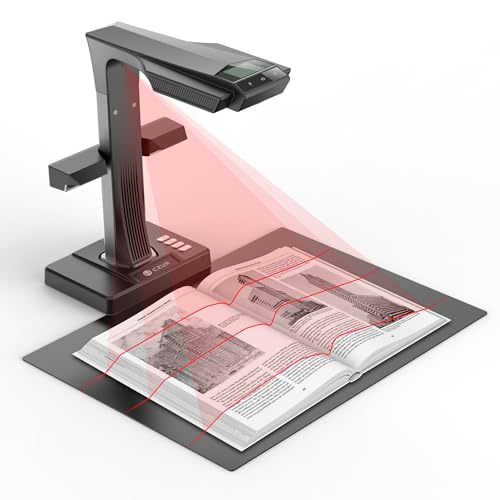
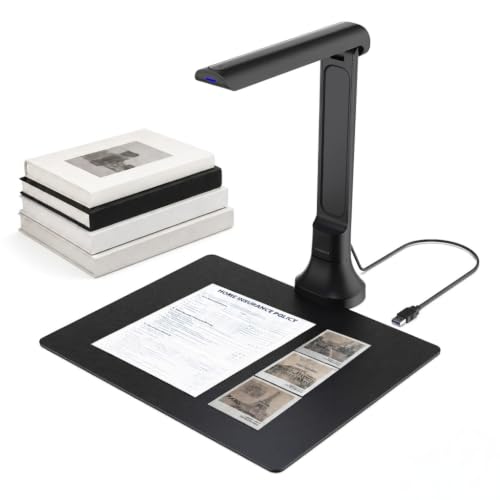
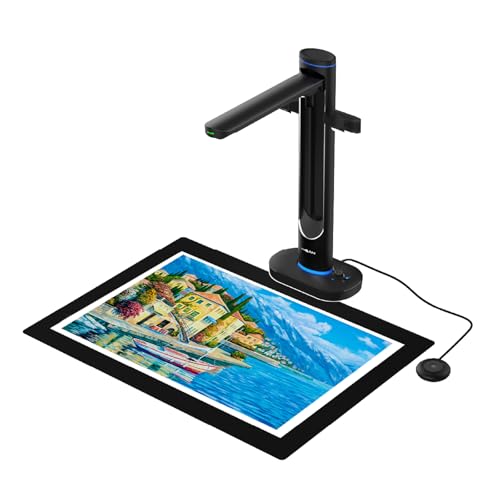
| Overhead / book-edge scanner (for example CZUR models) | Home scanning of whole books without cutting | Camera above the book, curve flattening, auto page turning detection on some, OCR software | Mid-range to premium tier; software quality varies; needs a flat table and lighting |
| Flatbed scanner (for example Epson Perfection and Canon CanoScan lines) | Occasional pages, photos, receipts | High optical resolution, scanning lid | Slow for books; spine shadow and curvature at the gutter |
| Book-edge flatbed (such as Plustek and similar) | Reducing gutter shadow on thick books | Flat edge allows the book to sit across the scanning area | Specialist and not widely available |
| Sheet-fed document scanner (for example Fujitsu ScanSnap, Brother, Epson WorkForce lines) | Cutting spines and scanning loose pages | Fast duplex scanning, automatic document feeder | Destroys the book unless disbound; needs a guillotine |
| Phone scanning apps | Quick snapshots of a few pages | Free or low cost | Uneven lighting and perspective; poor for whole books |
| Professional V-cradle scanners | Libraries and archives | High resolution, two cameras, V-shaped cradle | Premium tier and large footprint |
How to Choose a Book Scanner
Non-destructive or destructive
The first question is whether you will keep the book intact. Overhead and flatbed scanners leave the book unharmed. Sheet-fed scanners are fast but require removing the spine, typically with a guillotine cutter, which destroys the book. Avoid cutting rare, valuable or sentimental books, and consider whether a replacement copy exists.
Resolution and quality
Makers state scanning resolution in dots per inch or in megapixels for camera-based scanners. For reading and text recognition, reviewers say that moderate resolution is usually sufficient, while illustrations and archival goals may call for more. Higher resolution produces larger files.
Curvature correction
Overhead book scanners use software to flatten curved pages near the spine. Quality varies by model and by the book’s thickness. Reviewers frequently note that curvature correction can fail with tightly bound books, so expect some manual cleanup on difficult pages.
Speed
Overhead scanners can capture a page in a second or two, but you still turn the pages. Sheet-fed scanners can run through many pages per minute. Makers publish pages-per-minute figures, which are best-case numbers.
Optical character recognition
OCR turns scans into searchable text. Many scanners include bundled OCR software, while others rely on third-party tools. OCR quality depends on the font, language and print quality, and results always need proofreading.
Software and file formats
Check that the scanner exports to PDF, searchable PDF and common image types, and that the software runs on your operating system. Some brands release software updates less often than hardware, so read user feedback on drivers before buying.
Setup and space
Overhead scanners need a desk, controlled light and sometimes a foot pedal or remote to speed work. Flatbeds need less setup but consume space. Check dimensions and the stated lighting arrangements.
Brands and Lines Often Mentioned
Home users and reviewers often mention CZUR (overhead book scanners), Epson and Canon (flatbed scanners), Fujitsu ScanSnap and Brother (document scanners) and Plustek (specialist flatbeds). For heavier archival work, institutions use professional V-cradle systems from specialist makers. Model lines change every couple of years, so read each maker’s current product page for specifications and software support.
Budget Tiers
- Budget: a flatbed scanner or a phone app for occasional scanning. Slow for a full book but low cost.
- Mid-range: an overhead scanner with curve flattening and bundled OCR, or a quality sheet-fed scanner with a guillotine cutter for books you are willing to cut.
- Premium: professional-grade overhead or V-cradle systems with high resolution, which suit libraries and archives.
Care, Legal and Safety Notes
- Respect copyright law. Scanning for personal backup or accessibility may be allowed in some places, but sharing copies may not be. Check local law for your region.
- Avoid pressing hard on old bindings, since flat pressing can crack spines.
- Use a clean scanning surface and wipe glass with a soft, lint-free cloth.
- Keep the scanner away from direct sunlight, which affects image quality.
- Follow the maker’s electrical instructions and use only the supplied power adapter.
- Back up scans on more than one storage device.
Pick X If… Decision Table
| Pick this | If… |
|---|---|
| Overhead book scanner | You want to scan whole books without cutting them |
| Flatbed scanner | You scan a few pages or already own one |
| Sheet-fed scanner with cutter | You have cheap or duplicate books and want speed |
| Phone app | You need a few quick pages |
| Professional V-cradle | You are digitising fragile or rare books for archives |
Alternatives
- Buy the e-book: if a legitimate digital edition exists, buying it may save hours.
- Scanning service: companies offer book scanning for a fee, useful for large collections.
- Library or makerspace scanner: some libraries lend access to high-end scanners for free or low cost.
A Practical Workflow for Scanning a Shelf
Whichever scanner you choose, the workflow matters as much as the hardware. Sort the books into those worth scanning, those with digital editions you can buy, and those you can discard after scanning. Decide your target quality: reading copies need less resolution than archives. Test a sample chapter before starting a whole shelf, because settings that suit one book often do not suit another.
Typical Steps
- Prepare the work area with steady, even lighting and a clean, dust-free surface.
- Scan a few test pages and review sharpness, shadows and curvature.
- Run the batch, turning pages carefully and keeping fingers out of the frame, or use the software option that removes fingers from pages if the maker provides it.
- Run OCR and proofread the output, especially numbers, names and footnotes.
- Export to PDF or image folders, name files consistently and keep backups on two devices.
Common Problems
- Shadows at the gutter: use a book cradle, reduce lighting angles or choose a scanner with curvature correction.
- Skewed pages: use software deskew options.
- OCR errors: scan at suitable resolution, and avoid wrinkled pages.
- Glare on glossy pages: adjust lighting and avoid direct overhead lamps.
- Large file sizes: compress as a final step, not at capture.
Software and Support
Scanner software can be as important as the hardware. Look at which operating systems are supported, whether the maker has updated drivers recently, and whether the scanner works with third-party scanning programs. Some users prefer open-source tools for post-processing, and OCR engines such as Tesseract are widely used. Reviewers often caution that bundled software can be slow or limited, so budget time to learn it.
Book Types That Need Extra Care
Thick textbooks, tightly bound paperbacks and oversized art books are the hardest cases. Thick spines produce deep gutter shadows and strong curvature, so a cradle that supports the book at an angle helps. Glossy art books reflect light, so diffuse lighting and a glare-free surface matter. Old paper can be brittle, and acidic pages may crumble, so handle such books gently and consider a professional service. Pages with fold-out maps may need a flatbed or a manual stitching step.
Storage and File Management
A scanned library grows quickly. Use a consistent naming scheme such as author, title and year, store originals separately from compressed copies, and keep a simple index spreadsheet. Searchable PDFs let you find passages across many books with desktop search tools. Keep backups in at least two places, and review them occasionally to confirm the files still open.
Frequently Asked Questions
What is the best way to scan a book without damaging it?
An overhead book scanner or a flatbed used carefully will not cut the book. Avoid pressing the spine flat on a glass bed, because this can stress older bindings. For rare books, consult a conservator or a professional scanning service.
Can I scan a whole book with a phone?
Yes, but results vary. Lighting, perspective and curved pages can cause shadows and distortion. Phone scanning works for a few pages but is tedious for an entire book.
Do book scanners include OCR?
Many include basic OCR software, while others export images that you process with third-party tools. OCR accuracy depends on the print and language, so proofread the output.
Is it legal to scan books I own?
Laws differ by country and use. Personal copies for private use are treated differently from sharing or distributing scans. Read the copyright rules where you live, or seek legal advice for anything beyond personal use.
How long does it take to scan a book?
Time depends on the scanner, page count and your workflow. Sheet-fed scanners are fastest but need disbinding. Overhead scanners are quicker than flatbeds, but you still turn each page, and cleanup adds time.
What resolution should I choose?
For reading and searchable text, moderate resolution is usually adequate. Illustrated books, maps or archival projects may benefit from higher resolution, at the cost of larger files. Test a few pages first and adjust.