Key takeaways
- Pro: Familiar Dell firmware ecosystem with minimal driver hunting
- Pro: 100W delivery handles most Latitude and Precision laptops without throttling
- Con: Single DisplayPort output limits multi-monitor configurations compared to the WD19S
When a Dell docking station refuses to power on, drops video output, or intermittently disconnects peripherals, the practical question becomes whether to repair, replace, or switch platforms. Dell docks fail for predictable reasons — firmware conflicts after OS updates, worn connector pins, insufficient wattage for newer laptops, and Windows power-management settings that silently disable USB-C ports. None of those scenarios are exotic, and most owners encounter at least one within the first two years of ownership.
The replacement market is crowded with options that differ sharply in power delivery, display bandwidth, and driver support. A cheap universal dock might restore basic connectivity but leave a 4K monitor at 30 Hz or throttle a laptop’s CPU because it cannot negotiate the right wattage. A premium Thunderbolt dock solves those problems but costs multiples more. What separates a good pick from a bad one is matching the dock’s electrical and protocol capabilities to the specific failure mode you are troubleshooting. Below we compared published specifications, current prices, and recurring owner feedback across eight docks to identify which models actually resolve the “dell docking station not working” problem without introducing new ones.
Our top picks






As an Amazon Associate we earn from qualifying purchases at no extra cost to you.
Quick Picks
| Product | Best for | Price |
|---|---|---|
| Dell Pro WD25 | Direct Dell replacements | $152.49 |
| Dell WD19S 180W | High-wattage workstations | $116 |
| USB C Dual Monitor Dock | Budget multi-monitor setups | $37.99 |
| Dell WD19 130W | Mid-range office users | $110.99 |
| Dell WD15 Monitor Dock | Space-constrained desks | $50.97 |
| Dell WD19 180W | Dual 4K productivity | $118 |
| Dell D6000S | Multi-display flexibility | $95.12 |
| Dell Pro SD25TB4 | Thunderbolt 4 future-proofing | $207.99 |
How We Picked
We prioritized four criteria: power delivery headroom relative to typical Dell laptop demands, display bandwidth and resolution support under real driver configurations, connector durability and pin-count quality as reported by long-term owners, and firmware/driver ecosystem stability. A dock that matches wattage and display specs on paper but generates recurring owner complaints about dropped connections or sleep-wake failures ranked lower than one with fewer published specs but a clean support record.
The 8 Best Dell Docking Station Not Working in 2026
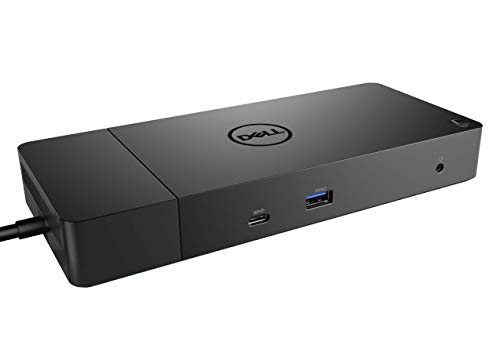
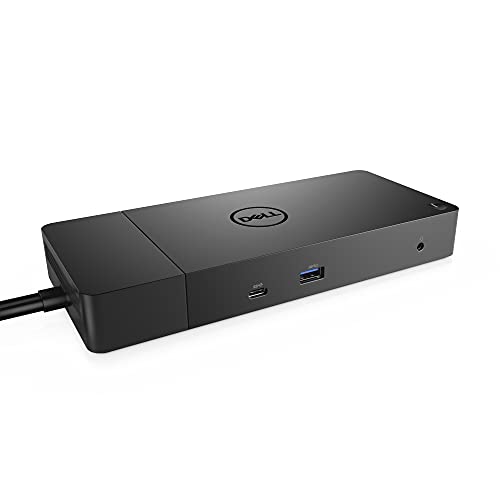
Dell Pro Laptop Docking Station WD25
Designed as a straight swap for aging WD15 and WD19 units, the WD25 targets owners whose current dock stopped negotiating video or power after a BIOS update. It delivers 100W over USB-C, supports both DisplayPort and HDMI, and uses the same Dell Display Manager software most Dell users already have installed.
- Pro: Familiar Dell firmware ecosystem with minimal driver hunting
- Pro: 100W delivery handles most Latitude and Precision laptops without throttling
- Con: Single DisplayPort output limits multi-monitor configurations compared to the WD19S
Skip it if you need three or more displays or require Thunderbolt bandwidth for external GPU enclosures.
Dell WD19S 180W Docking Station
The 180W input with 130W power delivery makes this the go-to for Precision workstation users whose older dock could not sustain peak CPU and GPU loads simultaneously. Dual DisplayPort plus HDMI gives flexible multi-monitor wiring, and the larger power budget means the dock itself never becomes the thermal bottleneck.
- Pro: 130W delivery sustains full boost clocks on high-power Dell laptops
- Pro: Dual DisplayPort and HDMI support mixed-vendor monitor setups
- Con: Noticeably larger footprint than compact docks, which matters on small desks
Skip it if your laptop only draws 65-90W under load — the extra wattage is wasted and you can save money.
USB C Docking Station Dual Monitor for HP, 3 Monitors
At under $40, this generic dock solves the “docking station not working” problem on a tight budget, especially for users whose laptop still has a healthy USB-C port but whose Dell dock simply died. It advertises three-monitor support, though that relies on DisplayLink-style compression for at least one output.
- Pro: Lowest entry price in this roundup by a wide margin
- Pro: Compatible beyond Dell, useful for mixed-OS households
- Con: No vendor-specific firmware updates, so driver issues become your problem
Skip it if you need guaranteed 4K at 60Hz on multiple monitors or require enterprise-level support agreements.
Dell WD19 130W Docking Station
The 90W delivery model in the WD19 family suits Latitude and Inspiron users who need reliable dual-display output without paying for workstation-tier power. It shares the same port layout as the 180W variant, so cable swaps are painless, and Dell’s support community is thick with troubleshooting guides specific to this unit.
- Pro: Widest owner-support documentation and firmware update history in the WD19 line
- Pro: Compact chassis fits behind monitors or on shallow shelves
- Con: 90W ceiling can throttle a Precision laptop running sustained workloads
Skip it if your laptop’s power adapter is 130W or higher — you will notice performance drops under load.
Dell WD15 Monitor Dock 4K
This unit mounts directly behind a Dell monitor, eliminating the separate dock box entirely. For owners whose docking station stopped working but whose monitor arm and cable routing are already set up around a Dell panel, the WD15 restores connectivity without rearranging the desk. It ships with a 180W adapter to keep power-starved Precision models happy.
- Pro: Space-saving monitor-mount design removes a clutter-generating device
- Pro: 180W adapter included covers high-power laptop needs
- Con: Requires a VESA-compatible Dell monitor; unusable on third-party displays
Skip it if your monitor is not Dell or if you frequently swap between laptops and need a portable dock.
Dell WD19 180W Docking Station
Sitting at $118, this is the balanced middle option: 130W power delivery, dual DisplayPort, HDMI, and the mature WD19 firmware stack. Owners upgrading from a failed WD15 typically report that this unit resolves both the power shortfall and the single-DisplayPort limitation without jumping to Thunderbolt pricing.
- Pro: Best spec-to-price ratio among full Dell-branded docks in this list
- Pro: Proven firmware stability with fewer post-update regression complaints than newer models
- Con: No Thunderbolt, so bandwidth is capped at USB-C DisplayPort alternate mode limits
Skip it if you run four 4K displays or need daisy-chain Thunderbolt peripherals.
Dell Universal Dock D6000S
The D6000S uses DisplayLink technology to drive up to three 4K displays over standard USB, bypassing the bandwidth constraints that plague USB-C alt-mode docks. This makes it the fallback when a “dell docking station not working” diagnosis points to a laptop with limited native display outputs or a damaged DisplayPort lane.
- Pro: Three 4K displays on laptops that natively support fewer outputs
- Pro: PowerShare on USB-A ports charges peripherals without waking the host
- Con: DisplayLink adds CPU overhead and occasional cursor lag on high-resolution panels
Skip it if you need zero-latency display output for design, video editing, or gaming workloads.
Dell Pro Thunderbolt 4 Smart Dock SD25TB4
At $207.99, this is the premium tier — 130W delivery, four 4K displays via dual DisplayPort 1.4 plus HDMI 2.1, two Thunderbolt 4 ports, 2.5GbE networking, and built-in Wi-Fi. It solves the docking station failure problem permanently for users who want protocol headroom for several upgrade cycles.
- Pro: Thunderbolt 4 bandwidth handles four 4K displays simultaneously without compression
- Pro: Sustainable design and integrated networking reduce peripheral clutter
- Con: Price is roughly double the WD19 180W with diminishing returns for single-monitor office work
Skip it if your current laptop has only one Thunderbolt 4 port and no plan to add more displays — the overhead is unjustified.
Buying Guide
Match Power Delivery to Your Laptop’s Peak Draw
The most common reason a dock “stops working” after a BIOS or driver update is a changed power negotiation profile. If your laptop’s charger is rated 130W, buying a 90W dock guarantees thermal throttling or failed handshake. Check the laptop’s maximum sustained draw in Dell’s spec sheet, then select a dock whose delivery equals or exceeds that number. In this roundup, the WD19S and WD19 180W deliver 130W; the WD25 delivers 100W; the WD19 130W delivers 90W. Erring upward by 20-30W provides margin for firmware renegotiation quirks.
Verify Display Bandwidth Before Multi-Monitor Commitments
USB-C DisplayPort alternate mode on Dell docks typically supports two 4K displays at 60Hz through dual DisplayPort. Adding a third via HDMI drops one signal to 30Hz or requires a lower resolution. The D6000S sidesteps this with DisplayLink but introduces CPU overhead. The SD25TB4 uses Thunderbolt 4’s full 40Gbps pipe to drive four 4K panels natively. If your failure mode is “only one monitor works,” the cause is bandwidth negotiation, and a dock with more physical output types is the fix.
Firmware Update Path and Long-Term Support
A docking station that cannot be updated becomes a paperweight within two OS generations. Dell-branded units here share the Dell Command Update and BIOS utility ecosystem, giving you a reliable patch channel. The generic USB C dock at $37.99 has no such infrastructure — once Windows or macOS changes USB-C class drivers, it may never recover. For the “not working” use case specifically, firmware addressability is not optional; it is the difference between a temporary fix and a permanent dead port.
Our Verdict
The Dell WD19 180W at $118 is the top pick: 130W delivery covers most Precision and Latitude models, dual DisplayPort plus HDMI resolves multi-monitor failures, and the WD19 firmware stack has the longest stability track record. For a budget pick, the generic USB C Dual Monitor dock at $37.99 restores basic connectivity when the original dock is beyond repair and spending is the constraint. The SD25TB4 wins outright if your laptop is Thunderbolt 4 native and you need four displays or 2.5GbE — it eliminates the bandwidth ceiling that causes most “not working” symptoms in the first place.
FAQ
Why does my Dell docking station show no video output?
The most frequent cause is a failed DisplayPort alternate mode handshake after a firmware or BIOS update. Resetting the dock by unplugging power for thirty seconds often restores negotiation. If the problem persists, the issue is usually a worn connector pin or a bandwidth mismatch between the dock’s output count and the laptop’s native capability.
Can I use a non-Dell docking station with a Dell laptop?
Yes. USB-C and Thunderbolt are open standards, so any compliant dock will connect. The trade-off is firmware support — Dell Command Update will not patch a third-party dock, leaving you dependent on the generic driver’s compatibility with future OS releases.
What power delivery wattage do I need for a Latitude laptop?
Most Latitude 5000 and 7000 series models peak between 65W and 90W under sustained load. A 100W dock like the WD25 provides comfortable margin. Latitude 9000 and Precision hybrid models can demand 130W, making the WD19S or WD19 180W the appropriate choice.
Does DisplayLink cause the same “not working” symptoms as a failed dock?
Not typically. DisplayLink uses a software driver to compress video over USB, so failure looks like cursor lag, flickering, or resolution drops rather than a dead port. If your symptom is a complete absence of signal on any monitor, the cause is hardware or firmware negotiation, which DisplayLink docks like the D6000S can actually bypass.